
Timeline
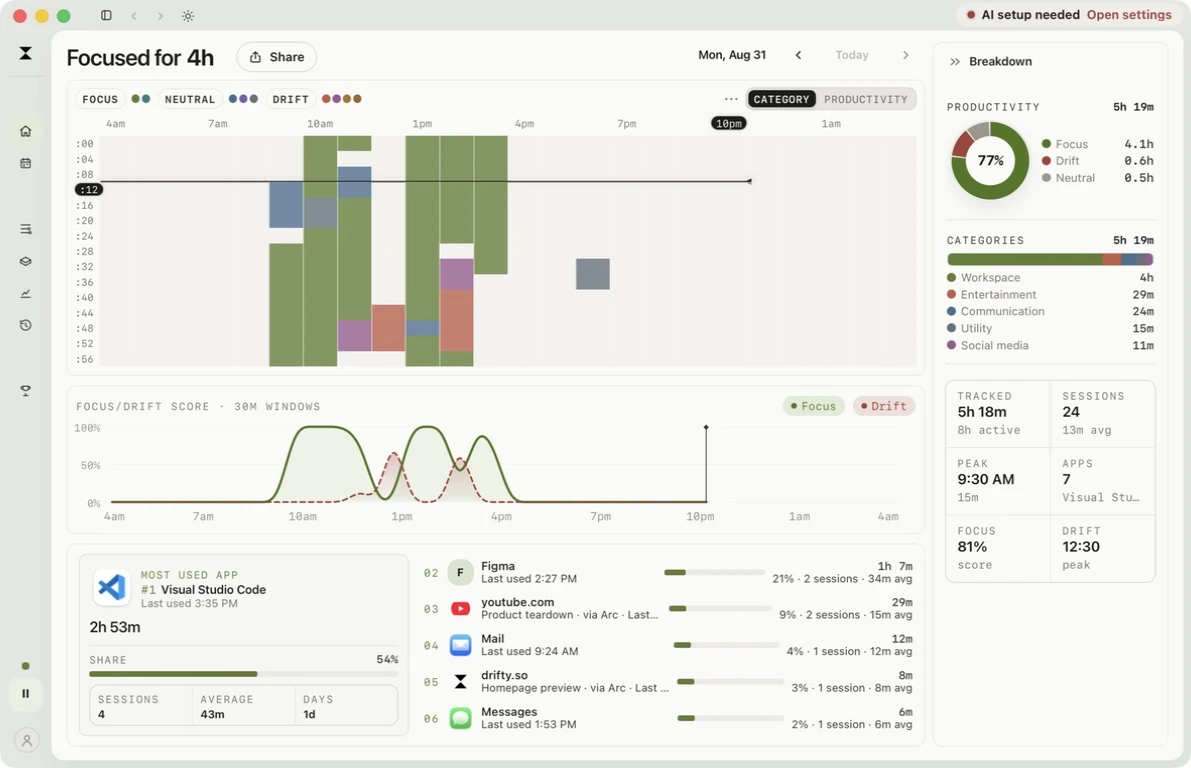
Your Day shows your recorded day from top to bottom. Each row is one hour; the minutes run from left to right in 4-minute blocks. Activity names sit beside the chart at their times.
Open an activity
Section titled “Open an activity”Click a colored block or an activity name to open its details in the right-hand panel. You can read its time range, apps and sites, and available activity details there. Use the back arrow to return to Breakdown.
Pointing at an activity highlights its matching blocks. Short activities may be too small to show a name beside the chart; click their colored blocks to see the details. A missing name does not mean the recording is missing.
When activity names have not been generated, the column shows app names. You can still open the recorded activity. See Correct classifications to change its category or productivity.
Zoom and move through the day
Section titled “Zoom and move through the day”The time zoom starts at 150%. Choose 100% for an overview of the full day, or increase it up to 300% to read smaller stretches. Zoom changes the scale of time, not the recorded durations. Your Day and Your Week remember their zoom separately.
Use the date arrows to visit another day. Returning to a day restores where you were reading during the current dashboard session. Now returns to the current time on today. Opening an activity keeps your place in the chart.
Read the colors and Breakdown
Section titled “Read the colors and Breakdown”Switch between Category, Productivity, and Project when available to look at the same captured blocks in different ways. Productivity distinguishes:
- Focus: activity classified as productive, such as work or study.
- Neutral: activity classified as neither focus nor drift.
- Drift: activity classified as distracting for you.
Breakdown brings together productivity, categories, daily totals, and the most-used apps and sites. Use its collapse button to give the chart more room.
Same-app context
Section titled “Same-app context”Drifty is meant to understand the work, not just the app name. Visual Studio Code can be a landing-page edit in one hour and a side project in the next. Window title and site context help make that distinction possible.
On Mac, if Accessibility is off, the timeline still fills at the app level, but those distinctions get coarser. Windows uses its native foreground-window APIs instead of this macOS permission.
To search or delete a specific local record, use History. For patterns across days, use Your Week or Insights.